
Checking how much RAM your Windows PC has is useful when you’re installing software, troubleshooting slow performance, or checking whether your computer meets a program’s requirements.
Windows provides several built-in ways to check RAM. The easiest method is through Settings, but you can also use Task Manager, System Information, or a simple command.
Method 1: Check RAM Using Windows Settings
This is the simplest method for most Windows 11 and Windows 10 users.
Steps:
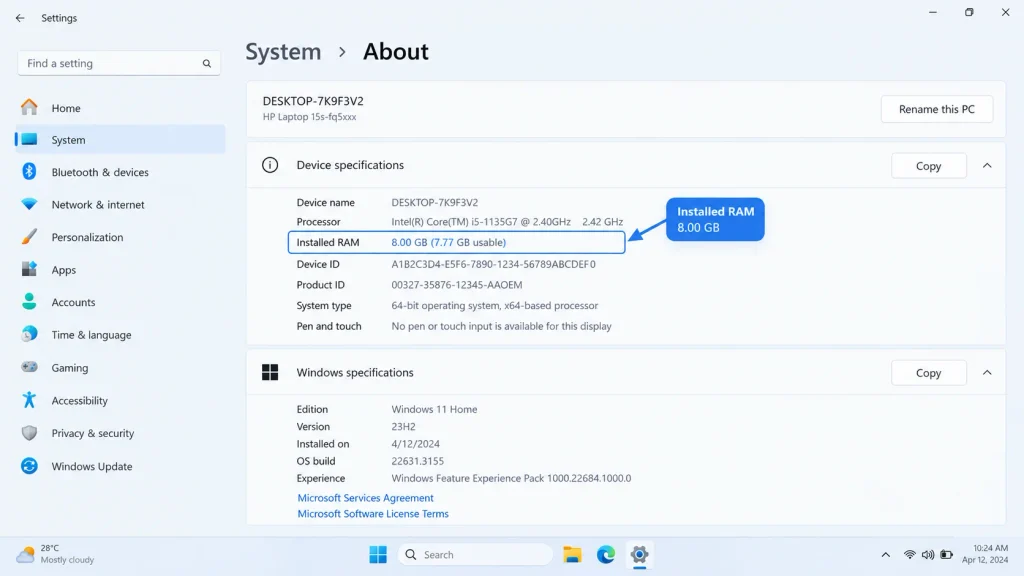
- Press Windows + I to open Settings.
- In Windows 11, click System.
- Select About.
- Look for Installed RAM under Device specifications.
You’ll see something similar to:
Installed RAM: 8.00 GB
This tells you the amount of physical RAM installed in your computer.
Tip: You can also use the Settings search box and search for About your PC if you don’t want to navigate through the menus.
Method 2: Check RAM in Task Manager
Task Manager provides more information than Settings. Besides the total RAM, you can see how much memory is currently being used.
Steps:
- Press Ctrl + Shift + Esc to open Task Manager.
- If Task Manager opens in a simplified view, click More details.
- Click Performance.
- Select Memory.
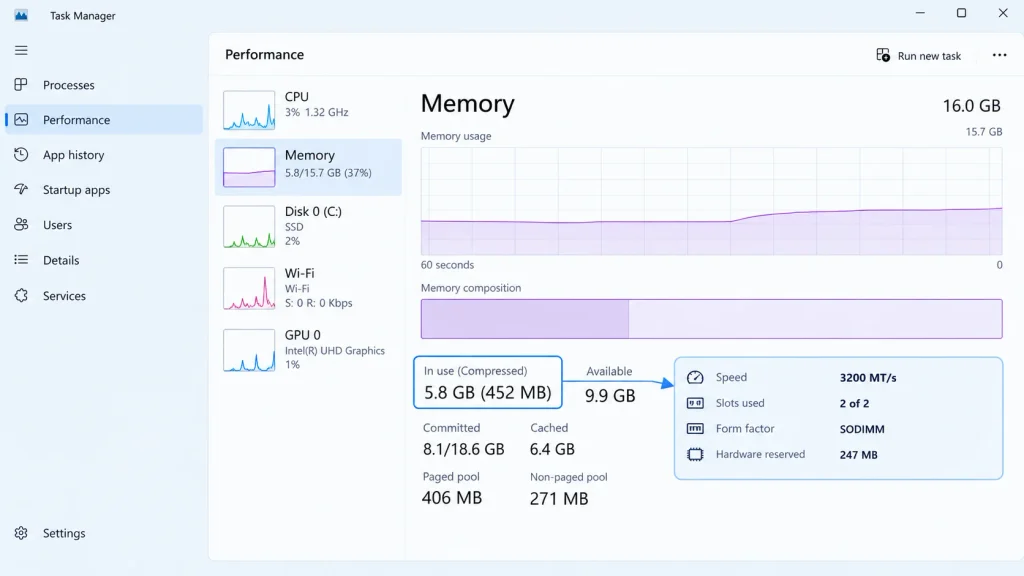
You’ll see information such as:
- Total installed memory
- Memory currently being used
- Available memory
- RAM speed
- Number of memory slots being used
- Memory form factor, where available
For example, a PC with 16 GB of RAM may show approximately 16 GB of total memory, while the amount marked as available changes depending on what Windows and your applications are currently using.
Alternative Method: Check RAM Using System Information
Windows also includes a built-in tool called System Information. It can show detailed information about your computer’s hardware and operating system.
Steps:
- Press Windows + R.
- Type
msinfo32. - Press Enter.
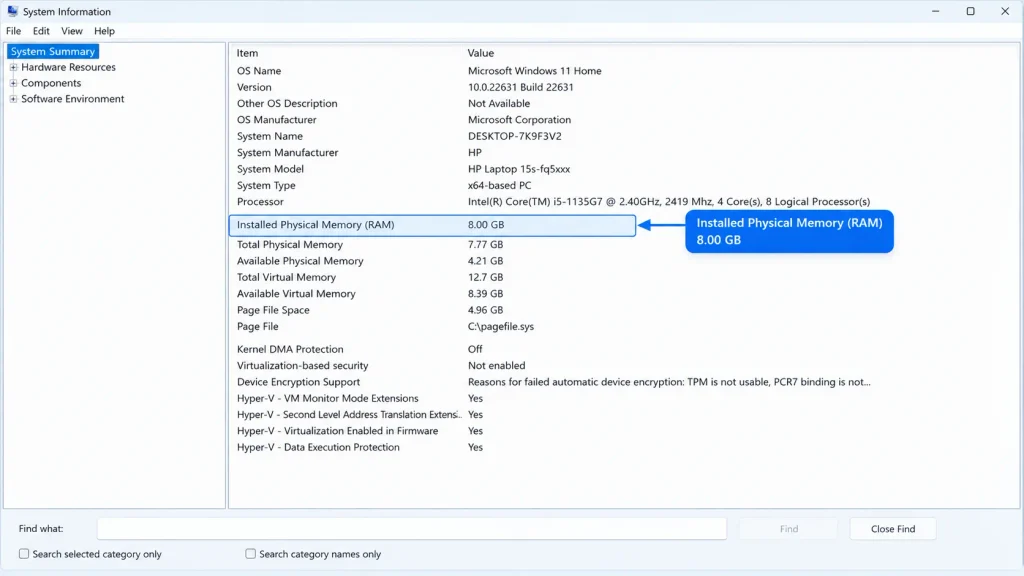
- In the System Information window, find Installed Physical Memory (RAM).
You can also see Total Physical Memory and Available Physical Memory in this window.
Check RAM Using Command Prompt
If you prefer using a command, Command Prompt can display the total physical memory installed in the computer.
Steps:
- Open Start.
- Search for Command Prompt.
- Open it.
- Enter:
wmic computersystem get totalphysicalmemoryThe result is displayed in bytes, so it isn’t as easy to read as the value shown in Settings or Task Manager.
Note: On newer Windows installations, some older WMIC functionality may be unavailable or deprecated. If the command doesn’t work on your system, use Settings, Task Manager, or System Information instead.
Also Check: How to Check Computer Specs
How to Check RAM Speed on Windows
If you’re checking RAM because you’re upgrading your computer, the amount of memory isn’t the only useful detail. RAM speed can also matter.
The easiest built-in method is Task Manager:
- Press Ctrl + Shift + Esc.
- Select Performance.
- Click Memory.
- Look for Speed.
You may see a value such as 3200 MT/s or another speed depending on your hardware and Windows configuration.
Important: RAM speed and RAM capacity are different things. For example, 16 GB describes the capacity, while a value such as 3200 MT/s describes the memory’s transfer rate.
How to Check How Much RAM Is Being Used
If your computer feels slow, checking current memory usage can help determine whether RAM is under heavy load.
Steps:
- Open Task Manager with Ctrl + Shift + Esc.
- Select Performance.
- Click Memory.
- Check the memory usage graph.
You can also select Processes to see which applications are using the most memory.
If an application is consuming an unusually large amount of memory, closing it may immediately free some RAM.
Quick Fix
If you just want to check your RAM quickly:
- Press Windows + I.
- Go to System > About.
- Find Installed RAM.
- Check the amount shown next to it.
For more detailed information, open Task Manager > Performance > Memory.
Frequently Asked Questions
How do I check how much RAM my Windows PC has?
Go to Settings > System > About and look for Installed RAM under Device specifications.
How do I check RAM usage in Windows?
Open Task Manager, select Performance, and then choose Memory. You’ll see current memory usage and available memory.
Can I check RAM speed in Windows?
Yes. Open Task Manager > Performance > Memory. The Speed field shows the memory speed reported by Windows.
Is 8 GB of RAM enough?
It depends on what you do with the computer. Basic web browsing, office work, and everyday tasks can work with 8 GB, while heavier multitasking, professional applications, and some games may benefit from more memory.
Why does Windows show slightly less RAM than installed?
Windows may reserve some physical memory for hardware or other system functions. Integrated graphics can also use part of the system’s RAM.