Browser Checker
See your browser, device, screen, connection and browser capabilities.
Checking your browser information...
Browser privacy features may limit some details. This tool reads information available inside your browser and does not create a device fingerprint or unique tracking ID.
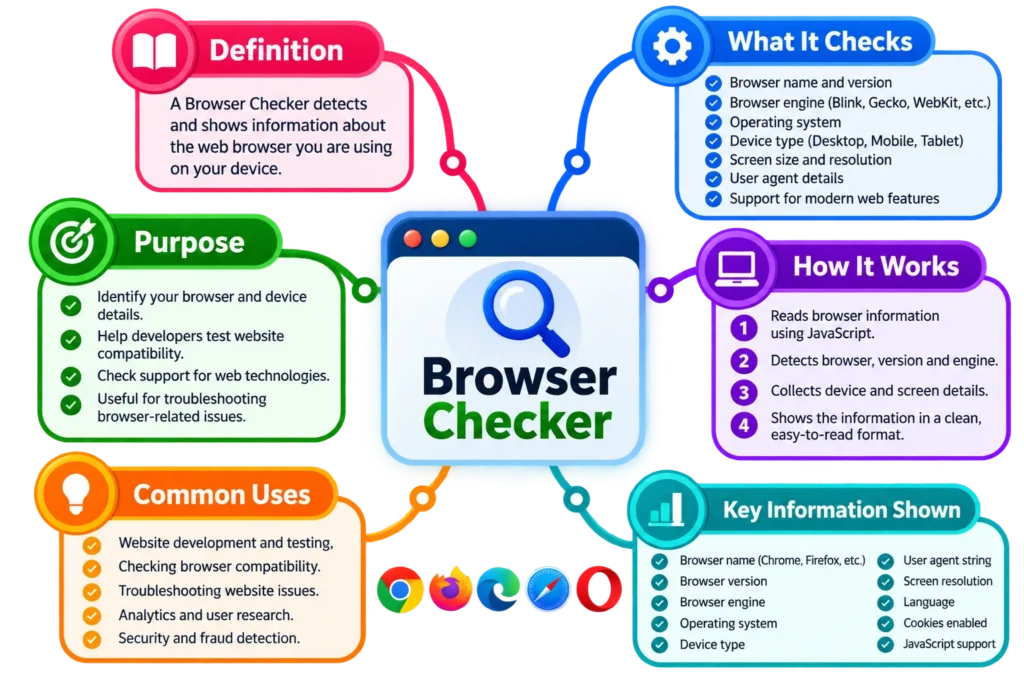
How Browser Checker Works
A Browser Checker reads the technical information that your web browser makes available to websites. As soon as you open the tool, it checks details such as your browser name, version, operating system, device type, screen size, language, timezone, and supported browser features.
There is nothing to install, and you don’t need to press several buttons. Most of the information is detected automatically, directly inside your browser, using standard browser features such as JavaScript and the Navigator API.
Some information may appear as “Not reported” or “Not available.” That’s normal. Modern browsers intentionally hide or reduce certain device details to improve privacy, so the amount of information available can differ between Chrome, Edge, Firefox, Safari, Brave, and mobile browsers.
What Is a Browser Checker?
A Browser Checker is a simple diagnostic tool that shows information about the browser and device you’re currently using. Think of it as a quick technical summary of your browsing environment.
For example, you may know that you’re using Chrome—but which version? Are you running Windows, Android, macOS, or iOS? What screen resolution does your device report? Is JavaScript enabled? Are cookies available? A Browser Checker brings these details together in one place.
This information can be especially useful when troubleshooting a website that looks wrong, refuses to load, shows an unsupported-browser warning, or behaves differently on another device.
What Browser Am I Using?
Your browser is the application you use to open websites. Common examples include Google Chrome, Microsoft Edge, Mozilla Firefox, Safari, Brave, Opera, and Samsung Internet.
The Browser Checker examines information reported by your browser and uses it to identify which browser you’re using. In most cases, the result appears almost instantly.
This may sound unnecessary—after all, you probably know which browser you opened. However, it becomes useful when helping someone troubleshoot a problem, testing a new device, or checking an unfamiliar computer.
How Does the Tool Detect My Browser?
Browsers provide websites with a piece of information traditionally called the User Agent. It can contain clues about the browser engine, operating system, device platform, and browser version.
The tool analyzes this information and other browser features to identify your browser. For example, Chrome, Edge, Firefox, Safari, and other browsers usually include recognizable identifiers in the information they provide.
There is one catch: modern browsers increasingly reduce User Agent details for privacy reasons. So, browser detection is useful—but it should not be treated as a perfect hardware-identification system.
What Is a Browser Version?
A browser version is the release number of the browser installed on your device. You may see something like Chrome 153.x, although the exact number depends on your installed release.
Browser versions matter because web technologies change over time. A feature that works perfectly in a current browser may be missing, restricted, or implemented differently in an older version.
If a website says, “Please update your browser,” checking the version is one of the first things you should do.
Why Should I Keep My Browser Updated?
Browser updates aren’t only about new buttons or visual changes. They frequently include security patches, performance improvements, bug fixes, and support for newer web standards.
An outdated browser can cause strange problems: pages may display incorrectly, videos may not play, login forms may fail, or certain JavaScript features may stop working as expected.
If your Browser Checker shows an older version, updating the browser is often a sensible first troubleshooting step—especially if a website works on another device but not yours.
What Operating System Am I Using?
The operating system, or OS, is the main software that manages your device. Common systems include Windows, macOS, Android, iOS, Linux, and ChromeOS.
Your browser usually exposes enough information to identify the general operating system. However, exact operating-system versions may sometimes be hidden or simplified.
This is important when following technical instructions. A solution written for Windows 11, for example, may be completely different from the steps needed on Android or macOS.
What Does Device Type Mean?
Device type tells you whether your current browsing environment appears to be a desktop/laptop, mobile phone, or tablet.
Websites often use this information—or, more commonly, the available screen and viewport size—to adjust their layout. A desktop page may have a wide navigation menu, while the mobile version may replace it with a smaller menu button.
Device detection isn’t perfect, especially with unusual devices, foldable screens, desktop modes, or tablets using desktop-style browsers. So, it’s best understood as a practical estimate.
What Is Platform Information?
Platform information is another browser-provided clue about the environment where the browser is running. Depending on your browser, it may show something related to Windows, Mac, Linux, or another platform.
Modern privacy protections can make this value less detailed than it used to be. You may therefore see a broad platform name instead of the exact device or operating-system release.
That’s expected; the Browser Checker reports what the browser actually makes available rather than trying to guess hidden information.
What Is Browser Language?
Browser language is the language preference reported by your browser. For example, you may see en-US, en-GB, hi-IN, or another language code.
Websites can use this preference to decide which language or regional content to show. It doesn’t necessarily mean you live in that country; it simply reflects the language configuration of your browser or device.
If a website keeps appearing in the wrong language, checking your browser-language setting can help explain why.
What Is a User Agent?
The User Agent is a text string your browser sends—or makes available—to help websites understand what kind of browser environment is making the request.
It may include browser identifiers, rendering-engine information, operating-system details, and other compatibility information. Developers often use it while troubleshooting browser-specific problems.
User Agent strings can look confusing because they often contain several browser names at once. That doesn’t mean you’re running five browsers; much of the wording exists for historical compatibility reasons.
Why Does My User Agent Contain “Mozilla”?
This confuses a lot of people. You may be using Chrome or Edge, yet the User Agent still begins with something like Mozilla/5.0.
That doesn’t mean you are secretly using Mozilla Firefox. The wording exists largely because of decades of web-browser compatibility history.
Modern browsers keep certain old identifiers because some websites still rely on them. So, don’t judge your browser only by the first word in the User Agent string.
What Is Screen Resolution?
Screen resolution describes the width and height of the screen as reported to the browser, usually in pixels. You might see something such as 1920 × 1080.
Resolution affects how much content can fit on the screen, but it doesn’t always represent the physical pixel count exactly. Display scaling, high-density screens, zoom settings, and operating-system settings can all affect what the browser reports.
This is why two laptops with similar physical screens can show different browser-reported resolutions.
What Is Browser Viewport Size?
The viewport is the usable area inside the browser window where the webpage is displayed. It is different from your full screen resolution.
For example, your monitor might be 1920 × 1080, but the browser viewport could be smaller because the browser’s tabs, address bar, bookmarks bar, taskbar, and window size take up space.
Web developers care a lot about viewport size because responsive websites change layout based on the space actually available to the webpage.
Screen Resolution vs Viewport: What’s the Difference?
Screen resolution refers to the overall display area reported by your device. Viewport size refers specifically to the area available for the current webpage.
If you resize the browser window, your screen resolution normally stays the same—but the viewport changes immediately.
That makes viewport size especially useful when testing responsive website designs. You can resize the browser and watch the Browser Checker update the viewport dimensions.