Ping Test
Check website reachability and response time directly from your browser.
This is a browser-based HTTP latency test, not a traditional ICMP ping. DNS, TLS, server response and network conditions can affect the result.
How Ping Test Works
A Ping Test checks how quickly your browser can reach a website and get a response back. In the SITESCS browser-based version, the tool sends several lightweight HTTPS requests and measures how long each one takes to complete.
The test runs from your own browser, not from the SITESCS server. This means the result reflects your current internet connection, browser, network route, and the response speed of the website you are testing.
This is slightly different from the traditional ping command used in Windows or Linux. Browsers cannot send raw ICMP packets, so this tool measures browser-to-website response time instead.
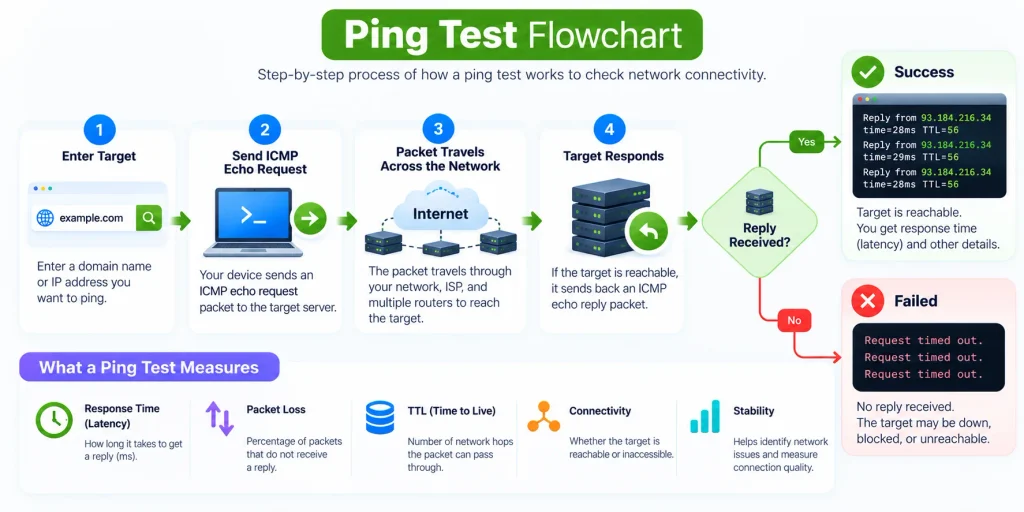
What Is a Ping Test?
A ping test is commonly used to check whether another computer, server, or website can be reached over a network. It can also give you an idea of how quickly information travels between your device and the destination.
When people say "ping," they usually mean network latency measured in milliseconds. A lower number generally means the response reached you faster, while a higher number means there was more delay.
For a normal user, a ping test is useful when a website feels slow, a connection seems unstable, or you want to compare response times between different websites.
What Does Ping Mean?
Ping is basically a small test used to see whether another system responds to your request. Your device sends something out, waits for the response, and measures how long the round trip takes.
You can think of it like saying, “Are you there?” to a server. If the server responds quickly, the measured delay is low; if the response takes longer, the latency number increases.
The result is normally shown in milliseconds, written as ms. One second equals 1,000 milliseconds, so even a difference of 20 or 30 ms can matter in some real-time applications.
What Is Latency?
Latency is the delay between sending a request and receiving a response. It is one of the main numbers you see when running a ping or browser response test.
For example, if the result shows 45 ms, it means the request took roughly 45 milliseconds to complete. Lower latency usually feels more responsive, especially during gaming, video calls, remote work, or other interactive tasks.
Latency is different from internet speed. You can have a fast broadband connection with high latency, or a slower connection that still responds quickly.
How to Read Ping Test Results
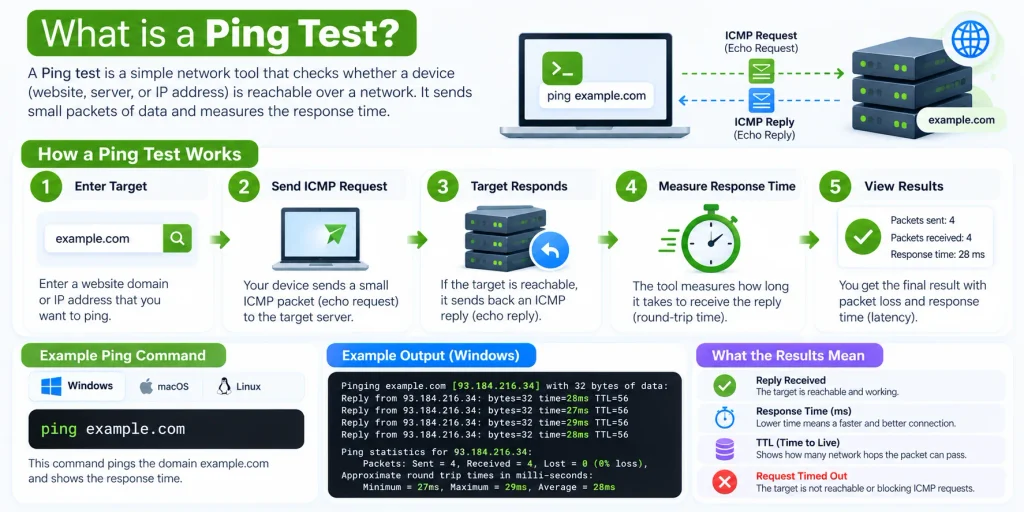
The SITESCS Ping Test runs several requests instead of relying on just one result. This helps give you a more useful picture of how consistently the website responds.
You may see Minimum, Average, and Maximum response times. Minimum is the fastest result, maximum is the slowest, and average gives you a general idea of the overall response time during the test.
If all four requests complete successfully and the times are fairly close together, the connection is usually behaving consistently.
What Is a Good Ping?
There is no single ping number that is perfect for every situation. A website that responds in 20 ms may feel extremely fast, while 80 or 100 ms can still be perfectly usable for normal web browsing.
As a simple guide, lower numbers are generally better. Very high or constantly changing response times may suggest network congestion, Wi-Fi problems, a distant server, or temporary load on the website.
Do not worry about a few milliseconds of difference between tests. Small changes are completely normal on real internet connections.
Why Does Ping Change Every Time?
Ping and browser response times are rarely identical on every test. Internet traffic changes constantly, and your request may take a slightly different amount of time each time it travels across the network.
Wi-Fi interference, other devices using your connection, ISP congestion, website traffic, browser activity, and server load can all affect the result. Even background downloads can temporarily increase response time.
This is why running several tests is more useful than relying on a single measurement.
Minimum, Average, and Maximum Ping
The minimum value shows the fastest successful request during the test. It gives you an idea of how quickly the connection can respond under the best conditions during that short period.
The average value combines all successful test results and gives you a more balanced number. For most users, this is the easiest value to look at when comparing different websites or connections.
The maximum result shows the slowest request. If the maximum is much higher than the average, there may have been a temporary delay or spike during the test.
What Does a Failed Request Mean?
A failed request means the browser could not complete one of the tests within the allowed time or encountered a connection problem. One failed request does not automatically mean the website is offline.
Temporary network interruptions, browser restrictions, TLS problems, server rate limits, or a slow connection can cause a request to fail. Running the test again can help you see whether the failure was temporary.
If every request fails, try opening the website normally in a new browser tab to confirm whether it is actually accessible.
Why Can a Website Open but Ping Test Fail?
A website may still open normally even if a browser-based ping test cannot measure it correctly. Some websites apply security policies that limit cross-origin browser requests or treat automated requests differently from normal page visits.
Content delivery networks, anti-bot systems, browser privacy settings, and security software can also affect the test. This is why the result should be treated as a connectivity indicator rather than absolute proof that a website is working or not working.
If the site opens normally in your browser, that is stronger evidence that the website itself is reachable.
Is This the Same as Windows Ping?
No. The traditional Windows ping command uses ICMP, a network protocol specifically designed for diagnostic messages. Web browsers do not allow websites to send raw ICMP packets directly.
The SITESCS tool uses HTTPS requests instead. This makes it possible to run the test directly in Chrome, Edge, Firefox, Safari, and other modern browsers without installing software.
Because HTTPS involves more steps, the numbers may be higher than the result you see from a command-line ICMP ping.
Why Browser Ping Can Be Higher Than Command Prompt Ping
A normal ICMP ping is a fairly simple network round trip. A browser request may involve DNS lookup, creating a connection, TLS encryption, HTTP processing, redirects, and the website's own response time.
All of those steps can add extra delay. For this reason, you should not directly compare a browser response time with an ICMP ping and expect the numbers to match.
The browser result is more useful for understanding how quickly a website responds from the visitor's point of view.
Does Ping Test Measure Internet Speed?
No. Ping measures response delay, while an internet speed test measures how quickly data can be downloaded and uploaded. They are related to your connection, but they describe different things.
For example, you may have a 500 Mbps connection with 150 ms latency. Downloads may be very fast, but interactive tasks may still feel slightly delayed.
If you want to check download and upload performance, use an internet speed test rather than a ping test.
Why Is My Ping So High?
High latency can be caused by several things, and the problem is not always with the website. A weak Wi-Fi signal, network congestion, VPN connection, distant server location, or busy ISP network can all increase response time.
The website itself may also be under heavy load or using a server far away from your location. If only one website has high response times while others are fast, the issue may be related to that website or its hosting network.
Try testing a few different websites before assuming your internet connection is the problem.
Can Wi-Fi Affect Ping?
Yes. Wi-Fi quality can have a noticeable effect on latency, especially when the signal is weak or several devices are competing for the same wireless connection.
Walls, distance from the router, interference from nearby networks, and older Wi-Fi equipment can all cause delays or inconsistent results. Moving closer to the router can sometimes improve the result immediately.
For more consistent testing, a wired Ethernet connection usually removes many of the variables caused by wireless networking.
Does a VPN Increase Ping?
A VPN can increase latency because your internet traffic normally travels through an additional VPN server before reaching the final website. The extra distance and encryption processing can add some delay.
The difference may be small when the VPN server is nearby and has plenty of capacity. A distant or overloaded VPN server, however, can increase response times significantly.
You can test once with the VPN enabled and once without it to compare the difference.
Does Server Location Affect Ping?
Yes. Physical distance matters because internet traffic has to travel through networks, routers, cables, and sometimes undersea connections before reaching the server.
A website hosted close to you will often respond faster than one hosted on another continent. CDNs help reduce this delay by serving content from locations closer to visitors.
This is one reason the same website can produce different response times for users in different countries.
What Is Packet Loss?
Traditional network testing uses the term packet loss when some packets are sent but no reply comes back. In a browser-based tool, we instead track how many HTTPS test requests succeeded or failed.
For example, if four tests are sent and three complete successfully, the tool may show three successful requests and one failed request. This gives you a simple picture of connection reliability during the test.
It is not exactly the same as ICMP packet loss, but it can still help identify unstable browser-to-website connectivity.
Why Does the Same Website Show Different Results on Different Devices?
Two devices on the same network can still produce different results. One may have a stronger Wi-Fi signal, different DNS settings, another browser, background traffic, or a VPN enabled.
Phones may also switch between Wi-Fi and mobile data without you noticing. Laptops can have different wireless hardware or power-saving settings that affect network performance.
For a fair comparison, make sure both devices are using the same network and test them at roughly the same time.
Can I Ping an IP Address?
Traditional ping tools can directly test an IP address. A browser-based HTTPS test is more limited because HTTPS normally expects a valid website certificate that matches the hostname being requested.
If you enter a raw IP address, the browser may block the request when the server's TLS certificate was issued for a domain name instead of that IP. This does not necessarily mean the server is offline.
For the most reliable browser-based results, enter a normal domain name such as example.com.
Can Ping Tell Me If a Website Is Down?
It can give you a useful clue, but it should not be the only test you use. A failed test may be caused by your own network, browser security, DNS, or the website's request policies.
If you suspect a website is down, try opening it normally, test another website, and check whether the same problem happens on another connection or device.
A website-status or HTTP-response checker can provide additional information when you need to diagnose a website problem.
When Should You Use Ping Test?
Use the Ping Test when a website feels unusually slow, you want to compare response times, or you are troubleshooting an unstable connection. It can also be useful before and after changing Wi-Fi, VPN, DNS, or network settings.
Running the same test a few times can help you notice patterns rather than relying on one unusual result. If latency stays consistently high across many websites, your network connection deserves a closer look.
For SITESCS users, it is a quick first check before moving on to more detailed internet, DNS, or browser troubleshooting.